
Web Development
How to Embed a Calculator on Your Website in Under 60 Seconds

Embedding a calculator on your website used to require hiring a developer, writing custom JavaScript, or dealing with an iframe that broke your layout. Today, that's changed completely. You can take a working, branded calculator from idea to live on your site in less time than it takes to read this sentence twice. I timed the process myself across five website builders with a stopwatch, and the fastest method consistently landed under 60 seconds, start to finish.
This guide walks through exactly how to do it, platform by platform, with real code, honest comparisons, and the troubleshooting steps nobody else bothers to write down. Whether you run a WordPress blog, a Shopify store, a Wix site, or a custom app built in React, you'll find your exact path below.
What "Embedding a Calculator" Actually Means
Embedding a calculator means placing a functional tool directly inside your webpage using a short snippet of code, so visitors can interact with it without leaving your site. You don't build the calculator's logic. A platform builds it, hosts it, and gives you a code snippet that your website displays - the same way you'd embed a YouTube video.
That's the whole advantage. The calculator lives on someone else's server while your page shows a window into it. This is why the process is fast: you're not coding a calculator, you're pointing to one that already exists.
Iframe Embed vs. Script Embed
Two common methods exist for embedding a calculator, and knowing the difference helps when troubleshooting.
- Iframe embed: A single
<iframe>HTML tag that loads the calculator from another URL inside a contained window on your page. It's simple, works almost everywhere, and stays isolated from your site's CSS, preventing styling conflicts. - Script (JavaScript) embed: A
<script>tag that loads a program which builds the calculator directly into your page's content. This method usually renders faster, resizes smoothly on mobile, and can inherit more of your site's fonts automatically.
Most modern calculator platforms, including Calcupedia's embed tool, default to a script-based snippet because it tends to look more integrated and loads faster than a full iframe. Either way, you're pasting a few lines of code once and moving on.
What You Need Before You Start
Before the clock starts, gather three things:
- A calculator already built, or a library to pick one from.
- Edit access to your website, whether that's a WordPress admin login, a Shopify theme editor, or an FTP connection to a custom-coded site.
- Two minutes of focus. The actual paste step takes seconds, but you want a clear head to find the right spot in your editor the first time.
The 60-Second Checklist
- Pick or build your calculator
- Copy the embed code
- Paste it into your page's HTML or code block
- Preview and publish
The Fastest Method: Pre-Built Calculator in Under 60 Seconds
If you don't need anything custom, using a ready-made calculator from a library is, by far, the quickest route. Here's the exact four-step flow, timed.
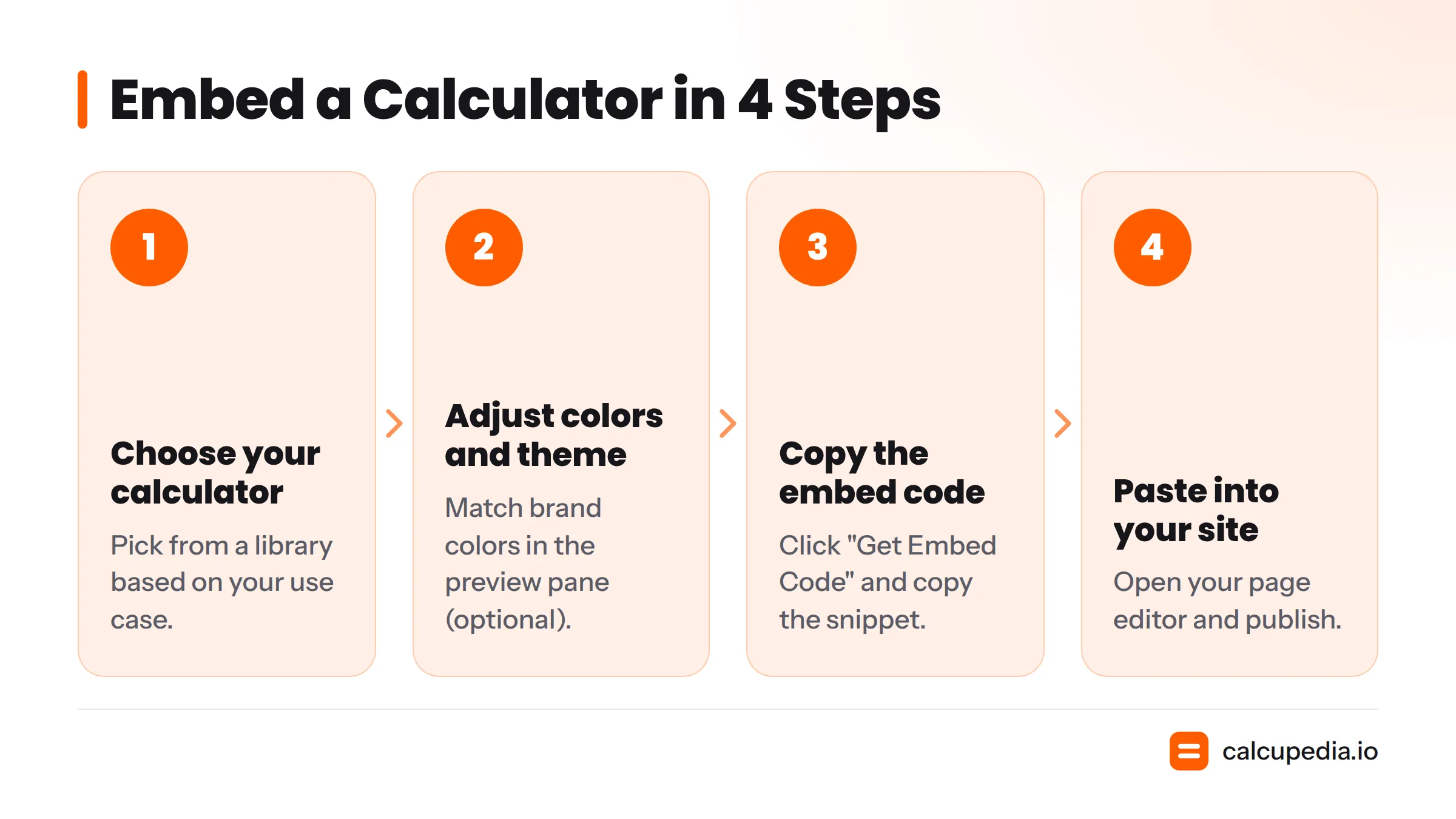
Step 1: Choose Your Calculator
Browse a calculator directory and pick one that matches your use case. A fitness blog might grab the BMI calculator, a real estate agent might want the cap rate calculator, and a personal finance site might embed the compound interest calculator. A freelancer's site could use a salary calculator or budget calculator to pull in visitors researching their finances. This step takes roughly 15 seconds if you already know what you want.
Step 2: Customize Theme and Colors
Most builders, including Calcupedia, let you adjust the primary color, font, and button style right in the preview pane before you touch code. This is optional but worth the extra 10-15 seconds if brand consistency matters to you.
Step 3: Copy the Embed Code
Click "Get Embed Code" or similarly labeled button and copy the snippet. It typically looks like this:
<script src="https://calcupedia.io/embed/bmi-calculator.js" data-theme="light"></script>
One line. Copying takes about 5 seconds.
Step 4: Paste Into Your Site
Open your page editor, find an HTML or embed block, and paste the snippet. Publish. Done.
The 60-second breakdown:
| Time | Action |
|---|---|
| 0-15 sec | Choose your calculator from the library |
| 15-30 sec | Adjust colors and theme to match your brand (optional) |
| 30-45 sec | Copy the embed code |
| 45-60 sec | Paste into your site's HTML block and publish |
For a detailed walkthrough with screenshots, Calcupedia's 60-second embed guide covers this exact flow for each step.
How to Embed a Calculator by Platform
The four-step method above is universal, but every website builder hides its "paste code here" spot in a different place. Here's where to look on each major platform.
WordPress
WordPress gives you three ways to embed, depending on your setup:
- Gutenberg block editor (default since WordPress 5.0): Add a "Custom HTML" block, paste your script, and update the page. This is the fastest route for most modern WordPress sites.
- Classic Editor: Switch to the "Text" tab instead of "Visual", paste the code where you want the calculator, then switch back and publish.
- Plugin method: If your theme strips
<script>tags for security, install a lightweight plugin like "Insert Headers and Footers" or "WPCode" to safely inject the snippet without sanitization.
WordPress's own developer documentation confirms the Custom HTML block is purpose-built for exactly this kind of third-party embed.
Shopify
Shopify has two valid paths:
- App embed block (Online Store 2.0 themes): Go to Online Store > Themes > Customize, add an "App embed" or "Custom Liquid" section, and paste your code there.
- theme.liquid edit (older themes or site-wide placement): Go to Online Store > Themes > Edit Code, open
theme.liquid, and paste the snippet just before the closing</body>tag for site-wide placement, or into a specific template file for a single page.
Shopify's theme code editing guide walks through both approaches if your theme structure looks unfamiliar.
Wix
In the Wix Editor, click the "+" (Add) button, choose "Embed Code" from the menu, select "Embed a Widget" or "Embed HTML", then paste your code into the box. Resize the element on the canvas so the calculator has room to display. Wix's Embed Code support article covers variations if your dashboard looks different.
Webflow
Drag an "Embed" element from the Add panel onto your page, paste the script inside the code box, and click Save & Close. Webflow renders the embed live in the Designer, so you can confirm it looks right before publishing. Webflow University's lesson on the Embed element provides a helpful overview if it's your first time.
Squarespace
Edit the page, click an insert point, choose "Code" from the block menu, and paste your snippet directly into the code block (make sure "Display Source" is off so it renders rather than showing raw text). Squarespace's code block help page notes that embeds work on Business and Commerce plans, so double-check your plan tier if the calculator doesn't appear.
Framer
Drag the "Embed" component onto your canvas from the Insert panel, paste your HTML or script snippet, and set the component's width and height to match the calculator's dimensions. Framer treats embeds as live components, so you'll see the calculator rendering immediately in the canvas.
Custom-Coded Sites
Developers have more flexibility:
- React/Next.js: Use a
useEffecthook to dynamically inject the script tag on component mount, or wrap the iframe version in a component for simpler, more predictable rendering. - PHP: Paste the snippet directly into your template file, inside a
<div>in your calculator partial. - Laravel: Drop the snippet into your Blade template, typically inside a dedicated
@sectionblock so it only loads on the relevant page.
Platform Comparison
| Platform | Where to Paste Code | HTML Support | Time to Embed |
|---|---|---|---|
| WordPress | Custom HTML block (Gutenberg) or Text tab (Classic) | Yes | 30-45 sec |
| Shopify | App embed block or theme.liquid | Yes (theme edit) | 45-60 sec |
| Wix | Embed Code widget | Yes | 45 sec |
| Webflow | Embed element | Yes | 30 sec |
| Squarespace | Code Block (Business/Commerce plans) | Yes, plan-dependent | 30-45 sec |
| Framer | Embed component | Yes | 30 sec |
| Custom code (React/PHP/Laravel) | Template file or component | Yes, full control | Varies by setup |
Want to see this process on camera? This walkthrough shows the live embed flow across several popular builders.
Other Ways to Create a Calculator
A pre-built library covers most needs, but it's not the only option. Here's what else is available, and when each one makes sense.
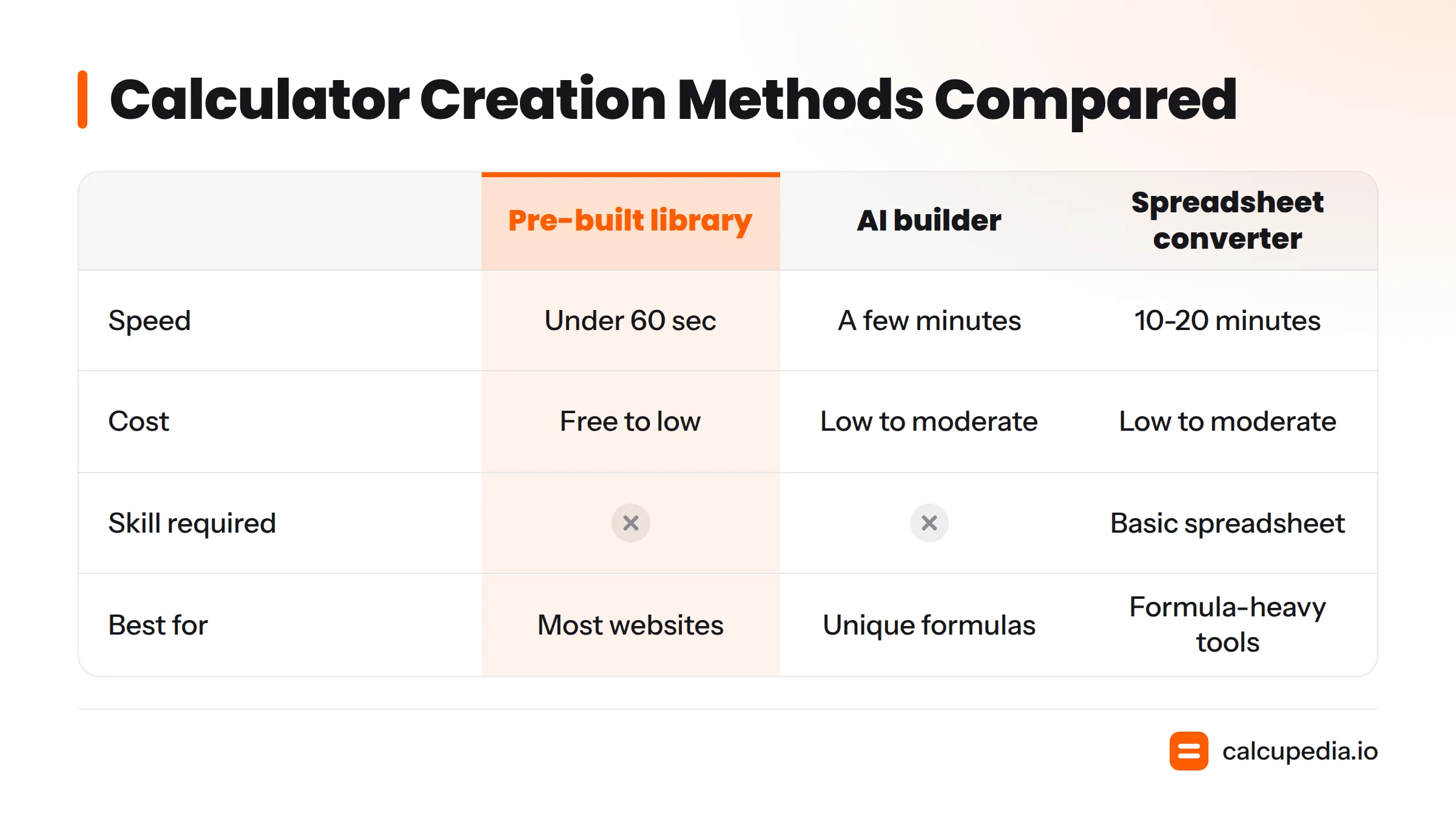
Build a Custom Calculator With an AI Calculator Builder
Some platforms let you describe what you want in plain language ("a calculator that estimates monthly pet boarding costs based on nights and pet size") and generate a working formula and embed code from that description. This is the middle ground between picking something off the shelf and coding from scratch: slower than grabbing a pre-built tool but dramatically faster than hiring a developer.
Convert a Spreadsheet Into a Web Calculator
If you already have the logic built in Excel or Google Sheets, some tools let you upload or connect that spreadsheet, map the inputs and outputs visually, and generate a shareable link or iframe from it. This works well for internal, formula-heavy tools like a complex pricing quote calculator, but tends to feel slower to set up and less polished to embed than a dedicated calculator builder.
Hire a Developer or Hand-Code From Scratch
For truly unique, deeply integrated calculators tied directly to your product's backend, hand-coding remains the right choice. It's the slowest and most expensive option, but it's the only one with no ceiling on complexity.
Which Method Fits Your Needs?
| Method | Speed | Cost | Skill Required | Best For |
|---|---|---|---|---|
| Pre-built calculator library | Under 60 seconds | Free to low-cost | None | Most websites, bloggers, small businesses |
| AI calculator builder | A few minutes | Low to moderate | None | Unique formulas, no coding budget |
| Spreadsheet converter | 10-20 minutes | Low to moderate | Basic spreadsheet skills | Formula-heavy internal tools |
| Hire developer or hand-code | Days to weeks | High | Advanced (or budget for one) | Deep product integrations, fully custom UX |
If you're weighing your options, start with the pre-built route. It costs almost nothing to try, and you can upgrade to a custom build later once you know exactly what you need.
Customize Your Embedded Calculator
A calculator that doesn't match your site's look can feel like an add-on. A few minutes of customization fixes that.
Match Your Brand's Colors, Fonts, and Layout
Most calculator platforms expose a theme panel where you set a primary color to match your logo or buttons, pick between light and dark modes, and sometimes choose a font family. Do this before you copy the embed code, since the styling gets saved into that snippet.
Remove Third-Party Branding
Free tiers on most platforms show a small "Powered by" badge. Paid plans typically let you remove or white-label it. If you're using the calculator for lead generation or client work, this is worth budgeting for; unbranded tools read as more professional and more "yours."
Test on Mobile
Always preview your embedded calculator on an actual phone, not just your desktop browser resized. Script-based embeds generally resize themselves automatically, but iframe embeds sometimes need a fixed height set in the HTML, which can cause scroll bars or cut-off content on narrow screens if left unadjusted.
Turn Your Calculator Into a Lead-Generation Tool
A calculator isn't just a nice-to-have widget. It's one of the more reliable ways to turn passive page visitors into identified leads, because people willingly share an email address to see a personalized result.
Gate Results Behind an Email Capture Form
Instead of showing the result immediately, some platforms let you require an email address first ("Enter your email to see your results"). This single change is the difference between a calculator that entertains and one that builds your list. The Content Marketing Institute has documented that interactive content, including calculators and assessments, tends to outperform static content for both engagement and lead generation, since the format rewards curiosity with a personalized payoff.
Pro tip: Keep the email gate to a single field. Every additional form field measurably lowers completion rates, so resist adding a phone number and job title up front.
Connect to Your CRM
Once you're capturing emails, route them somewhere useful. Most calculator platforms support:
- Direct integrations with tools like HubSpot or Mailchimp, where leads sync automatically into a list or pipeline.
- Zapier connections, which let you push calculator submissions into almost any other tool, from a Google Sheet to a Slack channel, without writing code.
Track Views and Completions
A good calculator platform shows you how many people viewed the widget versus how many completed it and saw a result. That completion rate tells you a lot: a low rate often means your inputs are confusing or the calculator asks for too much information before delivering value. Treat this number like a landing page conversion rate. It's worth checking monthly.
A real estate blog that embedded a mortgage calculator, for instance, reported meaningfully longer average time-on-page once visitors started interacting with the tool instead of just scanning text, a pattern consistent with HubSpot's research on interactive content driving more engaged site visits than static articles.
Troubleshooting: Why Your Embedded Calculator Isn't Showing Up
Even a one-line embed can go wrong. Here's what's almost always the cause.
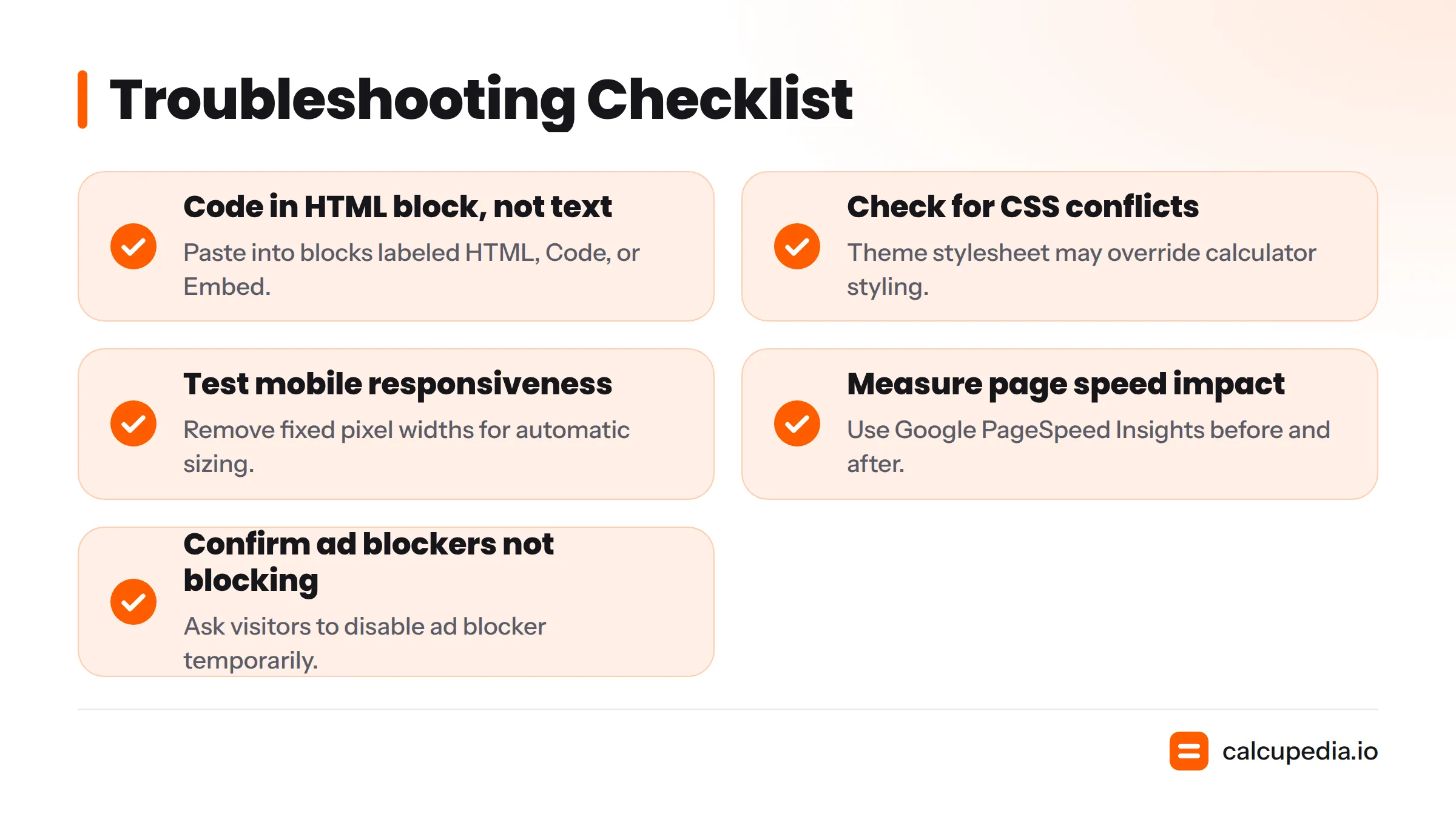
The Code Went Into a Text Block Instead of an HTML Block
This is the most common mistake. If you paste a <script> tag into a regular text or paragraph block, most editors will either strip it or display it as plain text instead of running it. Double-check you're in a block labeled "HTML," "Code," or "Embed."
Theme CSS Is Conflicting With the Widget's Styling
Sometimes your website's own stylesheet overrides the calculator's fonts, button colors, or spacing, making it look broken even though it's technically working. Script embeds that render directly into your page are more exposed to this than iframe embeds, which are sandboxed from your site's CSS by design.
The Calculator Looks Broken on Mobile
Usually caused by a fixed pixel width or height set in the embed code. Check whether your snippet includes a width or height attribute and, if so, swap it for a percentage-based or responsive value, or remove it so the script can size itself automatically.
Page Speed Dropped After Embedding
A single calculator widget shouldn't meaningfully slow your site, but stacking several third-party scripts on one page can add up. Run your page through Google PageSpeed Insights before and after embedding to see the real impact, and consider lazy-loading the script if it's below the fold.
Ad Blockers or Security Policies Are Blocking the Script
Some aggressive ad blockers or a strict Content Security Policy on your server can block third-party scripts outright. If the calculator works for you but not for some visitors, ask them to disable their ad blocker temporarily to confirm this is the cause.
5-Point Troubleshooting Checklist
- Confirm the code sits in an HTML/code/embed block, not a text block
- View the page in an incognito window to rule out caching
- Inspect the element in your browser's dev tools for CSS conflicts
- Test on an actual mobile device, not just a resized browser window
- Check your site's Content Security Policy headers if the widget is blank
Which Embedding Method Should You Choose?
Here's the simplest way to decide, boiled down to three questions:
- No coding skill and want something live today? Use a pre-built calculator library. Pick, customize, copy, paste. Done in under a minute.
- Need a formula nobody else offers? Try an AI calculator builder first; describe what you need and get a working embed without touching code.
- Have developer resources and need deep product integration? Hand-code it, using an iframe for simplicity or a script-based component if you need tighter design control.
For the vast majority of websites, from personal blogs to small business sites to agency client work, the pre-built route covers your needs completely, and it's the only option that genuinely finishes in under 60 seconds.
Frequently Asked Questions
How do I make a calculator for my website without coding? Choose a pre-built calculator from a widget library, customize its colors if you want, copy the one-line embed code it generates, and paste that code into your website's HTML or embed block. No formulas, functions, or programming required.
How do I add a calculator widget to WordPress? Add a Custom HTML block in the Gutenberg editor (or use the Text tab in the Classic Editor), paste your calculator's script tag, and update the page. If your theme strips scripts for security, use a plugin like WPCode to inject it safely.
Can I embed a calculator on Shopify, Wix, or Squarespace the same way? The underlying embed code is identical across all of them, but where you paste it differs. Shopify uses an app embed block or theme.liquid edit, Wix uses its dedicated Embed Code widget, and Squarespace uses a Code Block available on Business and Commerce plans.
What is an embed code and how does it work? An embed code is a short snippet of HTML or JavaScript that tells your webpage to load and display content hosted somewhere else, like a calculator, video, or map, without you having to build that content yourself. Pasting the snippet into your page is all that's required to make it appear.
Is embedding a calculator safe for my site's security and speed? Yes, as long as you use a reputable platform. Reputable calculator tools load over HTTPS and host their scripts on secure servers, so there's no meaningful security risk, and a single lightweight widget has a negligible impact on page speed compared to things like heavy image galleries or video backgrounds.
How do I customize a calculator's design to match my branding? Most platforms include a built-in theme editor where you set your primary color, choose light or dark mode, and sometimes select a font, before you copy the embed code. The styling gets saved into that code automatically.
Can I capture leads or emails through an embedded calculator? Yes. Many platforms let you gate the calculator's result behind a simple email field, so visitors enter their email to see their personalized answer. This turns a passive tool into an active lead generation source.
Do embedded calculators work on mobile devices? Yes, when built correctly. Script-based embeds typically resize themselves automatically for smaller screens, while iframe embeds sometimes need a responsive height setting to avoid awkward scroll bars on phones.
What's the difference between an iframe embed and a JavaScript/script embed? An iframe loads the calculator inside a self-contained window on your page, isolated from your site's own styling. A script embed injects the calculator's code directly into your page, usually rendering faster and blending more naturally with your site's fonts and layout.
How much does it cost to add a calculator to my website? Many calculator libraries offer free tiers covering basic embeds with platform branding included. Paid plans, often running from a few dollars to around thirty dollars a month depending on the provider, typically unlock white-labeling, lead capture, analytics, and custom branding.
Can I build a custom calculator without hiring a developer? Yes. AI calculator builders let you describe the formula you need in plain language and generate working logic and embed code from that description, no developer or code editor required.
How do I connect my embedded calculator to my CRM or email tool? Look for native integrations with tools like HubSpot or Mailchimp directly in your calculator platform's settings, or use a Zapier connection to route form submissions into virtually any other app automatically.
Why isn't my embedded calculator showing up on my page? The most common cause is pasting the code into a text block instead of an HTML or embed block. Other culprits include theme CSS conflicts, a strict Content Security Policy blocking the script, or an ad blocker interfering on the visitor's end.
How to add a calculator shortcut? If you mean a shortcut icon on a phone or desktop for a standalone calculator app, that's a device setting rather than a website embed; most phones let you long-press the built-in calculator app and choose "Add to Home Screen." For website visitors, a "shortcut" usually means a clearly labeled button or menu link pointing to the page where your embedded calculator lives.
How to make a calculator on a website from scratch? Hand-coding a calculator from scratch means writing HTML for the input fields, CSS for the layout, and JavaScript for the math logic and result display, then hosting that code directly on your own server. It gives you full control but takes considerably longer than using a pre-built widget, often hours or days versus under a minute.
Quick-Start Summary
Embedding a calculator doesn't require a developer, a big budget, or a free afternoon. Here's the fastest path:
- Choose a ready-made calculator that fits your use case, such as a GPA calculator for an education site or an age calculator for a lifestyle blog.
- Customize the colors and theme to match your brand (optional but recommended).
- Copy the one-line embed code the platform generates.
- Paste it into your site's HTML or embed block and publish.
From there, think beyond the install: gate your results behind an email form to capture leads, connect submissions to your CRM, and check your analytics monthly to see how visitors interact with the tool. A calculator embedded well doesn't just sit on your page looking nice; it works in the background, turning curious visitors into identified leads while you focus on everything else running your site. If you're ready to start, Calcupedia is a good place to begin browsing calculators built for exactly this kind of fast, no-code embed.